
Ever snapped a perfect photo only to discover an unwanted object photobombing your moment? Whether it’s that random stranger in the background or an accidental selfie with a half-eaten sandwich, these pesky distractions can ruin even the best shots. But fear not! With the magic of your iPhone, erasing those unwelcome guests is easier than finding an excuse to avoid a Monday meeting.
Overview of Erasing Objects in Photos
Removing unwanted objects from photos taken on an iPhone can transform an ordinary picture into a stunning image. Many users encounter distractions such as strangers, litter, or other unexpected items spoiling their favorite snapshots. Luckily, advanced photo editing tools available on iPhones provide a straightforward solution.
Utilizing the iPhone’s built-in Photos app enables individuals to effectively erase these distractions with just a few taps. The editing features are intuitive and user-friendly, making it accessible even for those with minimal experience in photo editing. Users can select the object they want to remove, and the app automatically fills in the background, ensuring a seamless look.
Additionally, third-party applications such as TouchRetouch or Snapseed offer powerful functionalities specifically designed for object removal. Both apps provide detailed options to make precise edits, catering to various user needs. Implementing these tools allows for greater control over the final appearance of the photo.
Success in this process hinges on careful selection of the object to erase, ensuring minimal impact on the surrounding area. Users should zoom in on the area of interest for better accuracy during the removal process.
Accurate editing can significantly improve the overall aesthetic quality of photos, making them more appealing for sharing on social media platforms or printing. Embracing these techniques empowers individuals to unleash their creativity while maintaining polished, distraction-free images.
Built-in iPhone Tools for Object Removal
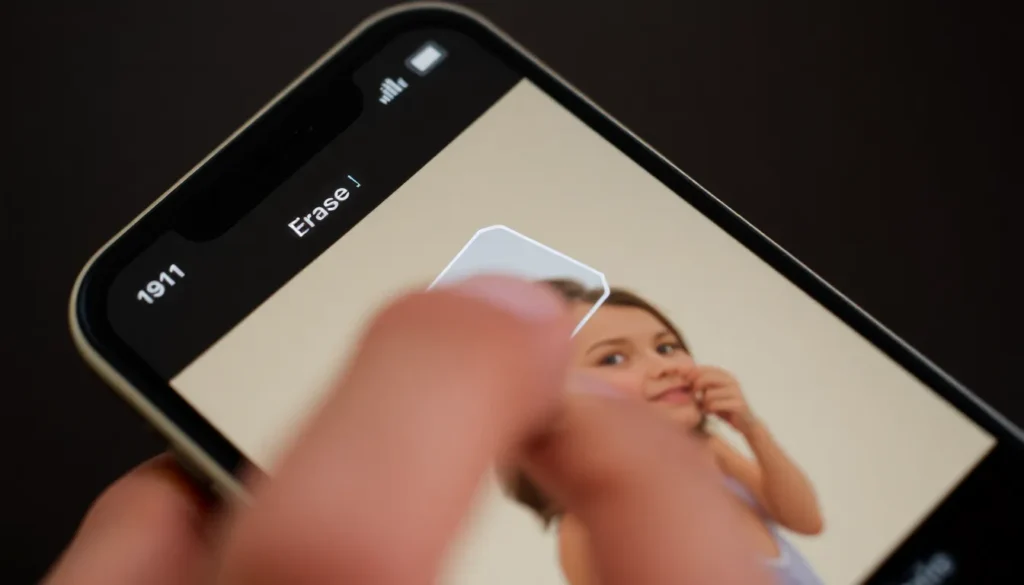
iPhones offer effective tools for removing unwanted objects from photos directly within the Photos app. These intuitive features simplify the editing process, making it easy to enhance any image.
Using the Photos App
The Photos app provides a convenient option for object removal. First, users open the desired photo and tap the “Edit” button. Next, selecting the “Erase” tool enables users to tap on the unwanted object. The app automatically analyzes the surrounding pixels and fills in the gap, producing a seamless effect. This functionality is ideal for eliminating distractions, fostering a smooth and polished image quality.
Utilizing Markup for Corrections
Markup offers another layer of editing sophistication. Within the Photos app, users can select the “Markup” option from the editing tools. This feature allows users to draw over any unwanted elements with precision. After finishing, tapping “Done” saves these changes directly to the photo. Markup is perfect for adding corrections or annotations, giving users control over their images and enhancing overall creativity.
Third-party Apps for Enhanced Object Removal
Many third-party apps provide advanced features for removing unwanted objects from photos. These applications offer user-friendly interfaces that simplify the editing process.
Popular Apps to Consider
TouchRetouch stands out for its intuitive design and specialized tools for object removal. Users can easily tap and erase distractions, making it a popular choice for quick edits. Snapseed also offers robust features, allowing users to select and remove unwanted elements through its healing tool. Another option, Adobe Photoshop Fix, provides advanced editing capabilities, including precise object removal and enhanced photo adjustments. Each application serves unique needs, ensuring that users find suitable options for various editing styles.
Comparison of Features and Ease of Use
TouchRetouch allows users to remove objects effortlessly with a simple tap. Snapseed offers a healing tool that provides more control over the editing process. Adobe Photoshop Fix excels in providing advanced options for detailed edits, but its learning curve may be steeper. All three apps support multiple photo formats, ensuring compatibility across various devices. Ultimately, users may prefer an app based on their editing skill level and specific requirements.
Step-by-Step Guide to Erase Objects
Erasing unwanted objects from photos on an iPhone can be simple and efficient. Follow these steps for effective removal.
Using the Photos App’s Tools
Access the Photos app and select the image to edit. Tap the “Edit” button to open the editing features. Utilize the “Erase” tool by tapping on the unwanted object. The app automatically fills the space, creating a seamless look. For more precision, activate the Markup option. This allows drawing over elements, making it easier to hide distractions. Users appreciate how straightforward this process can be, enhancing the final image’s appeal.
Using Third-party Applications
Consider third-party apps for advanced object removal. TouchRetouch provides an intuitive interface and specialized features for quick fixes. Users can easily select unwanted items and delete them with a single tap. Snapseed offers an effective healing tool that allows for more refined edits. Adobe Photoshop Fix appeals to those seeking extensive editing capabilities. Each application serves diverse needs, ensuring satisfying results for different editing preferences. These tools cater to varying skill levels, making object removal accessible to everyone.
Tips for Best Results
To achieve the best results while erasing objects in photos on an iPhone, consider the following strategies.
Select high-resolution images first, as clarity aids in effective object removal. Use natural lighting during photo capture, which minimizes shadows around the unwanted elements. Pay attention to your framing; leaving some space around objects can facilitate easier editing.
Utilize the built-in Photos app tools efficiently. After selecting an image, tap “Edit” and start with the “Erase” tool. Zoom in for better precision when removing small distractions. Make sure to review the edits carefully before saving to ensure seamless integration with the background.
Explore third-party applications for advanced capabilities. TouchRetouch offers a user-friendly interface specifically designed for object removal, making it a favorite among casual users. Snapseed’s healing tool provides greater control over edits, allowing for detailed work on complex backgrounds.
Experimenting with adjustments can enhance results. Try adjusting brightness and contrast after removing objects to improve overall photo quality. Additionally, consider using the Markup feature to overlay elements if needed, offering an alternative method for distraction removal.
Review before finalizing edits. Often, what looks good on a smaller screen may need tweaking when viewed larger. With these tips in mind, users can significantly improve their editing outcomes, transforming ordinary photos into stunning visuals.
Erasing unwanted objects from photos on an iPhone is a game changer for anyone looking to enhance their images. With the built-in tools in the Photos app and the variety of third-party applications available, users have everything they need to create stunning visuals. Whether opting for the simplicity of the “Erase” tool or diving into the advanced features of apps like TouchRetouch and Snapseed, achieving a polished look is within reach.
By following the right techniques and taking the time to refine edits, users can transform ordinary moments into extraordinary memories. Embracing these editing options not only elevates personal photo collections but also ensures images stand out on social media platforms.